Export/Import Windows Authenticode Certificates in Windows

You can use the DigiCert® Certificate Utility for Windows to export your Microsoft Authenticode code signing certificate to additional Windows workstations.
To copy your Code Signing Certificate to another Windows workstation, do the following:
-
Use the DigiCert Certificate Utility to export your Authenticode code signing certificate.
How to Export Your Authenticode Certificate with the DigiCert Utility
-
Install the Authenticode certificate .pfx file to your other Windows workstation.
-
Use your Authenticode code signing certificate to sign your files.

1. How to Export Your Authenticode Code Signing Certificates with the DigiCert Utility
-
On your Windows workstation that you have the code signing certificate installed to the current user's Windows User Account, download and save the DigiCert® Certificate Utility for Windows executable (DigiCertUtil.exe).
-
Run the DigiCert® Certificate Utility for Windows.
Double-click DigiCertUtil.
-
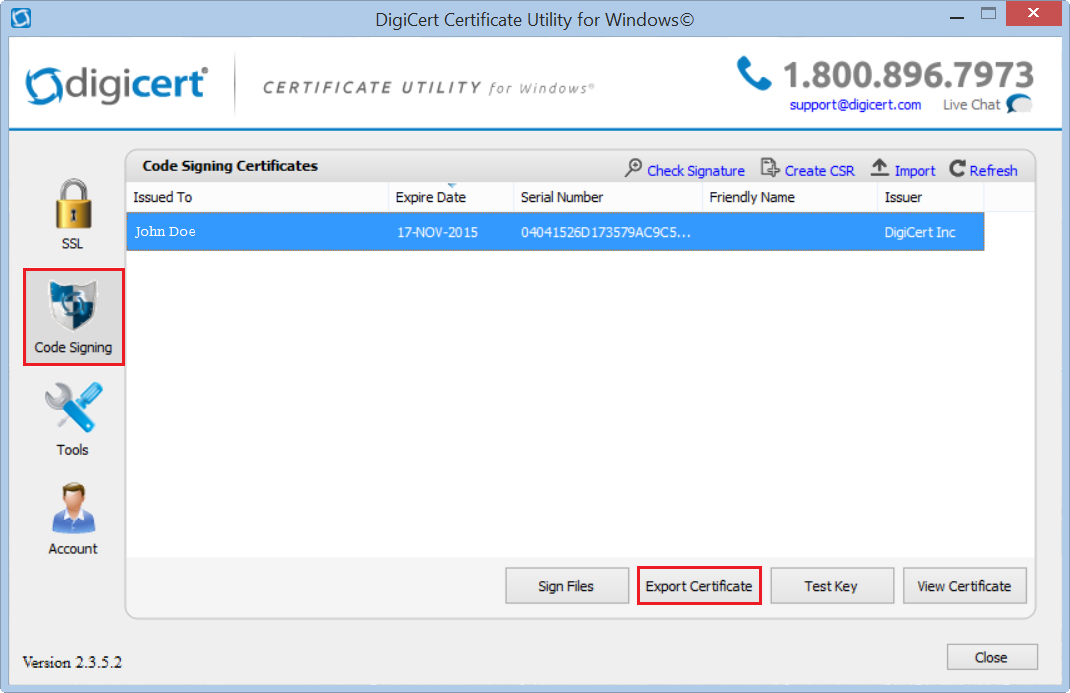
In the DigiCert Certificate Utility for Windows©, click Code Signing (blue and silver shield), select the certificate that you want to export, and then click Export Certificate.
-
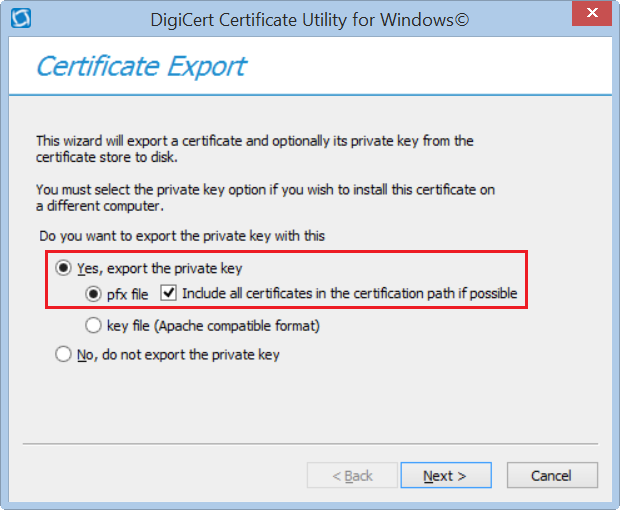
In the Certificate Export wizard, select Yes, export the private key, select pfx file, and then check Include all certificates in the certification path if possible, and finally, click Next.
-
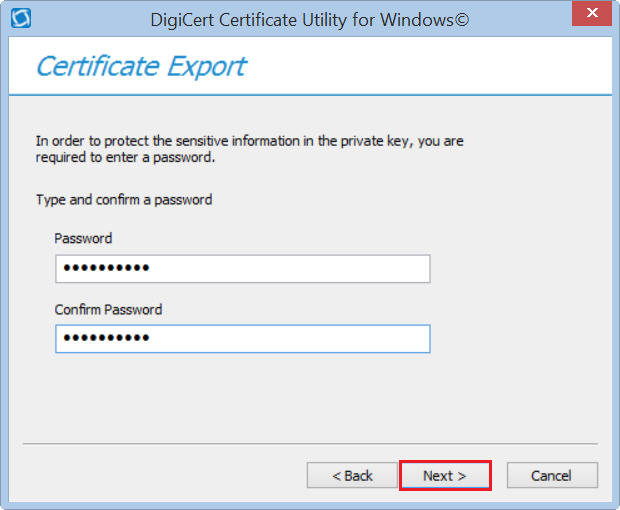
In the Password and Confirm Password boxes, enter and confirm your password, and then, click Next.
Note: This password is required when you install your Authenticode certificate onto another Windows workstation.
-
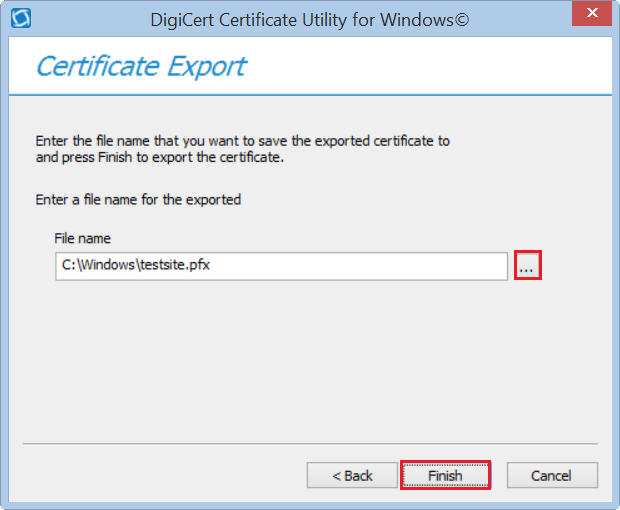
In the File name box, click … to browse for and select the location and file name where you want to save the .pfx file, provide a file name (i.e. yourAuthenticodeCertificate ), click Save, and then, click Finish.
-
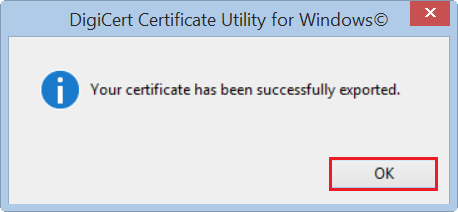
After you receive the "Your certificate has been successfully exported" message, click OK.
2. How to Install Your Authenticode Certificate .pfx File
-
Copy the "yourAuthenticodeCertificate.pfx" to the new Windows workstation.
-
Double-click on "yourAuthenticodeCertificate.pfx".
-
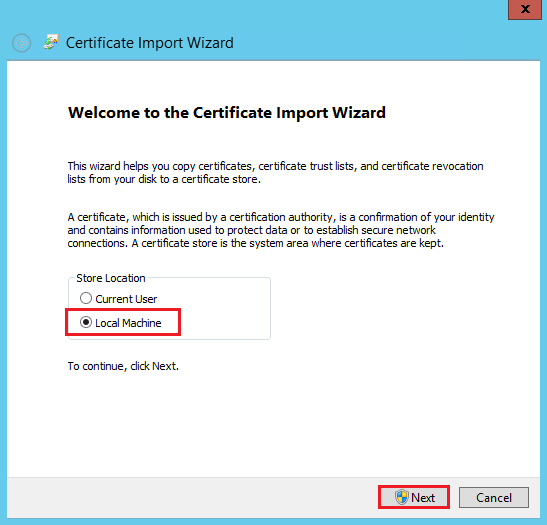
In the Certificate Import Wizard, on the Welcome page, select Local Machine and then click Next.
-
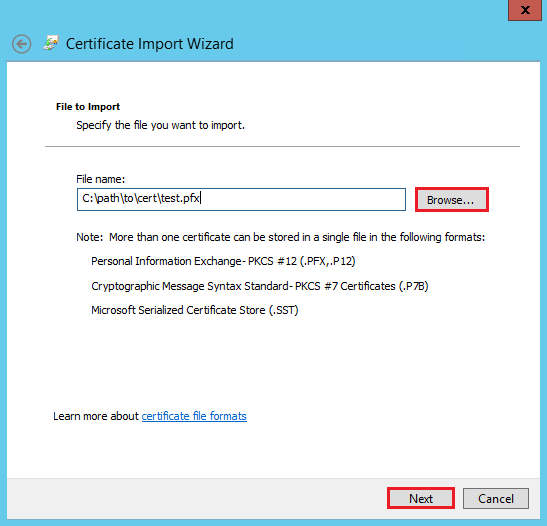
On the File to Import page, click Browse to browse to and select the location where you want to save the certificate .pfx file and then click Next.
-
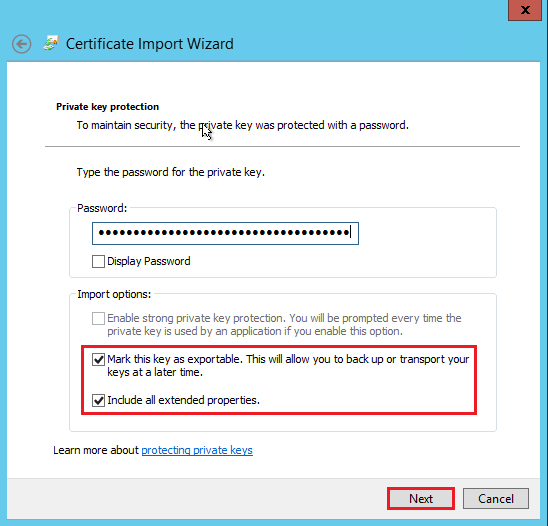
On the Private key protection page, in the Password box, enter the password that you created when you exported your code signing certificate, check Mark this key as exportable and Include all extended properties, and then click Next.
-
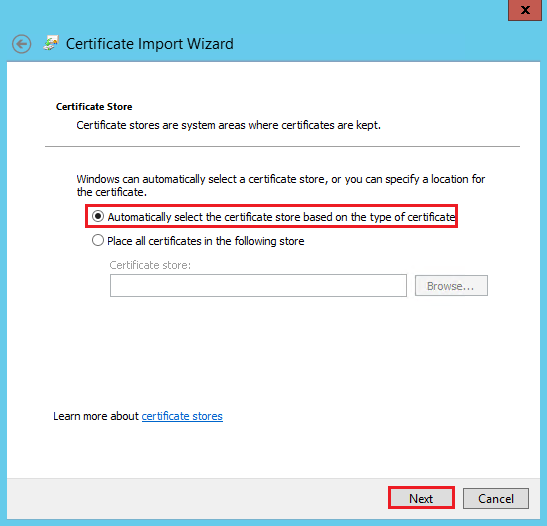
On the Certificate Store page, select Automatically select the certificate store based on the type of certificate and then click Next.
-
On the Completing the Certificate Import Wizard page, review the settings and then click Finish.
-
When you receive "The import was successful" message, click OK.
3. How to Sign Your Files with Your Authenticode Certificate
-
Open the Command Prompt as an admin.
For Example:
-
On the Windows Start screen, type cmd.
-
Right-click on Command Prompt and then click Run as administrator.
-
In the User Account Control window, click Yes to allow the program to make changes to the computer.
-
-
In the Administrator: Command Prompt window, type one of the following commands:
To Sign Code with a SHA256 Certificate/Digest Algorithm/Timestamp
signtool sign /tr http://timestamp.digicert.com /td sha256 /fd sha256 /a "c:\path\to\FileToSign.exe"To Sign Code with a SHA1 Certificate/Digest Algorithm/Timestamp
signtool sign /t http://timestamp.digicert.com /a "c:\path\to\FileToSign.exe"Note: If you need to dual sign your files, see Dual Signing with SHA256 and SHA1 Standard Code Signing Certificates or Dual Signing with SHA256 and SHA1 EV Code Signing Certificates.
-
Congratulations, you should now have a freshly signed Authenticode file.
DigiCert Certificate Utility
You can also use the DigiCert® Certificate Utility for Windows to sign your Authenticode files. See Code Signing with the DigiCert® Certificate Utility for Windows.
Troubleshooting
You can verify that your certificate was imported correctly using either of the following methods:
1. DigiCert Certificate Utility
After importing your certificate to the Certificate Store, you can verify that it's listed correctly by running the DigiCert® Certificate Utility for Windows on your computer.
In the DigiCert Certificate Utility for Windows©, click Code Signing (blue and silver shield). In the Code Signing Certificates section, you should see your certificate in the list of code signing certificates.
2. Managing your Certificate from the MMC Console
You can also verify the code signing certificate has been installed for the current user by running the Certificate Manager snap-in (certmgr.msc) in the MMC.
To open the Snap-In, go to Start > Run, type certmgr.msc, and press Enter. Expand Personal > Certificates. You should see your Authenticode certificate in the list of certificates.