

- Contact Us
-

choose your language

Knowledge Base
Set Up Your DigiCert Provided eToken

Learn how to set up your code signing DigiCert-provided hardware token.
Before you begin
Before you begin, make sure you meet these prerequisites:
- DigiCert-provided hardware token: SafeNet 5110 CC, SafeNet 5110 FIPS, or SafeNet 5110+ FIPS.
- Access to your certificate's Order details page in CertCentral.
- Code Signing or EV Code Signing certificate order number.
- Verify whether the eToken is blank or comes with the certificate preinstalled.
- Administrator permissions on your computer.
- Secure password manager. See Passwords 101.
Important: This process will require you to supply multiple passwords. If you incorrectly enter or lose a password, you can permanently disable your eToken. We recommend using a secure password manager to track the passwords used for initializing your eToken. |
How do I know if my eToken is blank or comes with the certificate installed?
In your CertCentral account, go to your certificate's Order details page. In the Certificate actions dropdown menu, what option do you see? The menu option lets you know if the eToken is blank or has the certificate preinstalled.
Menu options:
- Install certificate
This option means the eToken is blank, and you must install the certificate on the eToken. See Install your code signing certificate on your hardware eToken below.
- Initialize token
This option means the certificate comes preinstalled on your eToken. You need to unlock the eToken to access your certificate. See Initialize your eToken below.
Install your code signing certificate on your eToken
- In your CertCentral account, in the left main menu, go to Certificates > Orders.
- On the Orders page, select the certificate's order number.
- On the certificate's Order details page, in the Certificate detail section, in the Certificate actions dropdown, select Install certificate.
- On the install certificate page, use the link to download and install the DigiCert Hardware Certificate Installer.
- You must install the SafeNet Authentication Client on any system you plug the eToken in to sign code.
- Learn how to install the SafeNet Drivers.
- Copy the initialization code for your order.
- Open the DigiCert Hardware Certificate Installer.
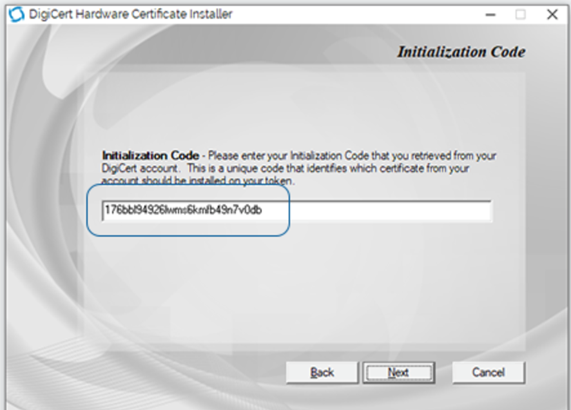
- In the DigiCert Hardware Certificate Installer on the Initialization Code page, in the Initialization Code box, enter the initialization code from your CertCentral account and then select Next.
- Plug in your eToken.
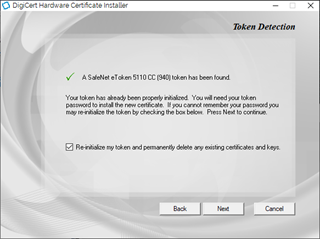
- On the Token Detection page, check Re-initialize my token and permanently delete any existing certificates and keys and then select Next.
If you are installing an alternate chain or key type and need to keep your current certificate on the eToken intact, leave the Re-initialize option unchecked.
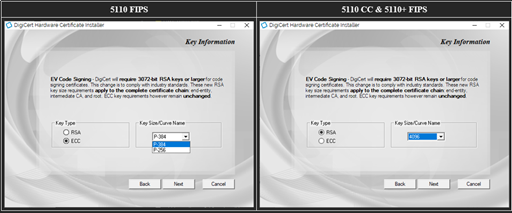
- On the Key information page, do one of the following tasks and then select Next:
- RSA
- Under Key Type, select RSA.
- Under Key Size/Curve Name, select 4096.
- ECC Key Types
- Under Key Type, select ECC
- Under Key Size/Curve Name, select p-256 or p-384.
- RSA
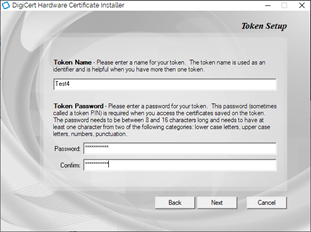
- On the Token Setup page, do the following tasks:
- Add a Token Name.
The token name is used to identify the eToken. This name is helpful when you have multiple eTokens.
- Create a Token Password.
This password (sometimes called a token PIN) is required to access the certificates saved on the eToken.
- Add a Token Name.
- READ THIS BEFORE YOU CONTINUE
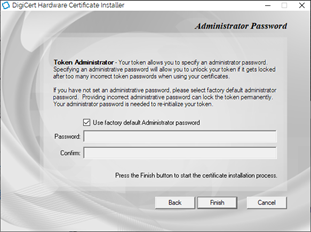
On the Administrator Password page, do one of the following tasks:
- If you have NOT changed the Administrator Password since receiving your eToken, leave Use factory default Administrator password checked and select Finish.
- If you have set a new Administrator Password (done outside of DigiCert Support using the SafeNet client), uncheck Use factory default Administrator password, enter the current Administrator Password, and select Finish.
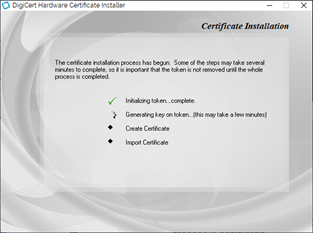
- On the Certificate Installation page, be patient and wait.
Some of the steps may take several minutes to complete. Wait to remove the eToken until the whole process is completed.
Generating an RSA 4096-bit key will take time. Let the process complete.
- When the process finishes, select Close.
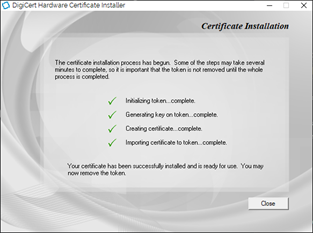
- You can now use the code signing certificate on your eToken to sign code.
Initialize your eToken
- In your CertCentral account, in the left main menu, go to Certificates > Orders.
- On the Orders page, select the certificate's order number.
- On the certificate's Order details page, in the Certificate detail section, in the Certificate actions dropdown, select Initialize Token.
Important: Do not proceed without your DigiCert-provided hardware token. You need the eToken to complete these steps. Additionally, some information is only shown one time.
- On the initialization page, confirm you have your eToken.
If you have not received your DigiCert-provided hardware token, do not proceed. You can use the link to check your tracking information. However, come back once you have your DigiCert-provided token.- Now that you have your DigiCert-provided hardware token, check I have received the hardware token.
- When ready, select Submit.
- On the confirmation page, copy your preassigned eToken password and store it in a safe place.
Warning: Your preassigned password will only be visible once. Make sure to take note of this password. You need it to access your certificate on your DigiCert-provided hardware token. See Password 101.
- Use the link to download and install the DigiCert Hardware Certificate Installer.
- You must install the SafeNet Authentication Client on any system you plug the eToken in to sign code.
- Learn how to install the SafeNet Drivers.
- Change the eToken password.
The eToken password is used to access the eToken certificate store.- Open the SafeNet Authentication Client and then connect the eToken to your computer.
- In the SafeNet Authentication Client, on the top of the page, right-click the cog icon (Configuration button).
You should now see the eToken listed in the tree menu on the left side of the page. - Right-click on the eToken name and select Change Password.
- On the change password page, enter your Current Token Password from the Initialization page in CertCentral.
- Next, create a new password.
- Save the New Token Password in your secure password manager.
- When ready, select OK.
- You can use the certificate on your eToken to sign code.
Password 101
| Warning: The SafeNet eToken uses multiple passwords for authentication. If an Administrator Password is entered incorrectly five times, the eToken is permanently locked. |
The SafeNet eToken uses the following passwords:
- Administrator Password:
The default Administrator Password is "0" 48 times as provided by the manufacturer. If "this" password is lost, you are permanently locked out of the eToken and must purchase a new one. DigiCert does not set up this password.
- Token Password:
This password is used to access the eToken certificate store. If lost, you can reset the eToken and reinstall the certificate.
- Personal Unlocking Key (PUK): Default PUK is 000000.
DigiCert does not use the PUK in our process.
Troubleshooting
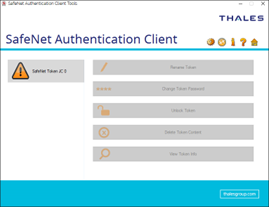
- My token appears as "SafeNet Token JC 0."
Your eToken has been permanently disabled due to incorrect password attempts. Please contact DigiCert Support to order a new eToken.
- I lost my Administrator password.
The administrator password is required to reset the device and is unrecoverable. Please contact DigiCert Support to order a new eToken.
Note: The manufacturer sets this password, not DigiCert.
- I lost my Token password.
The Token Password is used to access the eToken certificate store. Use the Administrator Password to reset the eToken password if lost.
If you have lost your Token Password, you can reinitialize the eToken and create a new Token store when you reissue/rekey your certificate.
- Reissue your certificate.
- Re-initialize your eToken.
After DigiCert reissues your certificate, install it on your eToken. See Install your code signing certificate on your hardware token.
-

The most-trusted global provider of high-assurance TLS/SSL, PKI, IoT and signing solutions.
-



-
© 2022-2024, DigiCert, Inc. All rights reserved.
Cookie Settings
