Use Java's Keytool to create a CSR and install your SSL/TLS certificate on your Tomcat (or other Java-based) server
Prevent email tampering and phishing with a DigiCert S/MIME certificate.
Buy NowUse these instructions to generate your certificate signing request (CSR) and install your SSL/TLS certificate on your Tomcat server using Java’s Keytool.
Restart Note: After you've installed your SSL/TLS certificate and configured the server to use it, you must restart the Tomcat service.
-
To create your certificate signing request (CSR), see Tomcat Server: Create Your CSR with Java Keytool.
-
To install your SSL certificate, see Tomcat Server: Install and Configure Your SSL/TLS Certificate.
To view these instructions in Spanish, see CSR para Tomcat and Tomcat Instalar Certificado SSL.
If you are looking for a simpler way to create CSRs, and install and manage your SSL/TLS certificates, we recommend using the DigiCert® Certificate Utility for Windows. You can use the DigiCert Utility to generate your CSR and prepare your SSL/TLS certificate file for installation on your Tomcat server. See Tomcat: Create CSR & Install SSL/TLS Certificate with the DigiCert Utility.
I. Tomcat Server: Create Your CSR with Java’s Keytool
Use the instructions in this section to create a new keystore (.jks) file and to generate your CSR.
Recommended Method: Use the DigiCert Java Keytool CSR Wizard
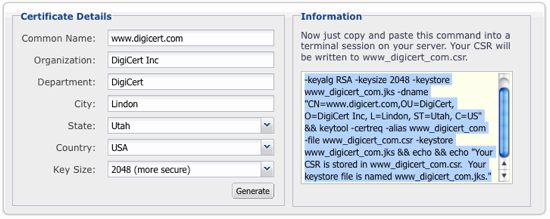
Save yourself some time: Use the DigiCert Java Keytool CSR Wizard to generate a Keytool command to create your Tomcat keystore and CSR.
-
Simply fill out the form, click Generate, and then paste your customized Java Keytool command into your terminal.
-
The Java keytool utility creates both your private key and your certificate signing request, and saves them to two files: your_common_name.jks, and your_common_name.csr.
-
You can then copy the contents of the CSR file and paste it into the CSR text box in our order form.
-
Skip to Step 2, part 3: Save and Back-up Your Keystore File.
Do you prefer a more manual approach to generating your Tomcat keystore and CSR? Follow the instructions below.
Step 1: Use Keytool to Create a New Keystore
Important: We recommend you generate a new keystore following the process outlined in this section. Installing a new certificate to an old keystore often ends in installation errors or the SSL/TLS certificate not working properly. Before you begin this process, backup and remove any old keystores.
-
Run Command
-
Navigate to the directory where you plan to manage your keystore and SSL/TLS certificate.
-
Enter the command below.
keytool -genkey -alias server -keyalg RSA -keysize 2048 -keystore your_site_name.jksIn the command above, your_site_name should be the name of the domain you want to secure with this SSL/TLS certificate. When ordering a Wildcard certificate, do not include the asterisk (*) in the filename (e.g., your_site_name). The asterisk is not a valid keytool character.
-
Create a Password
-
When prompted, create a password for your Keystore.
Note: You will specify this password in your Tomcat configuration file and then use it to generate your CSR and to import your certificate.
-
Store this password somewhere safe, such as a trusted and secured password manager.
-
-
Enter your SSL/TLS certificate information.
Important: When prompted for the first and last name, DO NOT type your first and last name. Instead, type the Fully Qualified Domain Name (FQDN) for the site you are securing with this certificate (e.g., www.yourdomain.com, mail.yourdomain.com). Are you are ordering a Wildcard Certificate? Then your FQDN must begin with an asterisk (*). (e.g.,*.yourdomain.com).
-
Enter your Organization information.
-
When prompted to verify your information, type y or yes to confirm.
-
When asked for a "key password for <server>", press enter to use the password you just created for the keystore file.
-
-
Your keystore file, your_site_name.jks, is now created and in your current working directory.
Step 2: Generate a Certificate Signing Request (CSR) from your New Keystore
-
Run Command
-
In Keytool, type the following command:
keytool -certreq -alias server -file csr.txt -keystore your_site_name.jksIn the command above, your_site_name should be the name of the keystore file you created in Step 1: Use Keytool to Create a New Keystore or when using the DigiCert Java Keytool CSR Wizard.
-
When prompted, enter the password you created earlier (when you created your new keystore).
-
In your current directory, csr.txt (e.g., your_site_domain.txt) now contains your CSR.
-
-
Save and Back-up Your Keystore File
-
Take note of the path to your keystore file (your_site_domain.jks) as your SSL/TLS certificate will be installed to it later.
-
We recommend that you create a back-up copy of your Keystore file (your_site_domain.jks) before continuing. Having a back-up of the Keystore file can help resolve issues that may occur during certificate SSL/TLS installation.
-
-
Order Your SSL/TLS Certificate
-
Open the .csr file you created with a text editor.
-
Copy the text, including the -----BEGIN NEW CERTIFICATE REQUEST----- and -----END NEW CERTIFICATE REQUEST----- tags, and paste it in to the DigiCert order form.
-
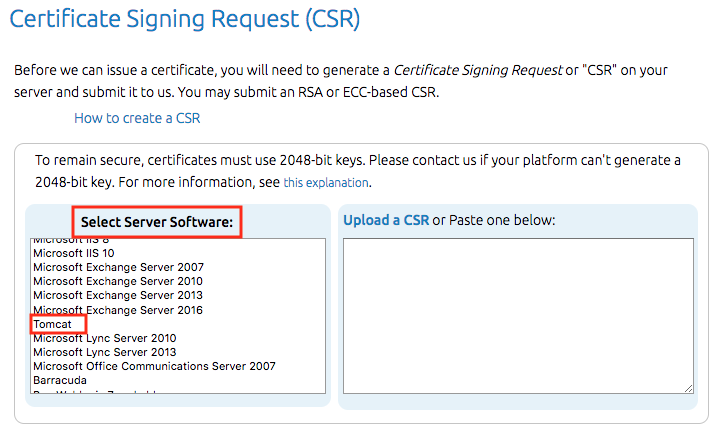
Make sure that when you Select Server Software, you select Tomcat.
-
-
Install Certificate
After you’ve received your SSL/TLS certificate from DigiCert, you can install it on your Tomcat server.
II. Tomcat Server: Install and Configure Your SSL/TLS Certificate
Need to create your certificate signing request (CSR)? See Tomcat Server: Create Your CSR with Java Keytool.
After we've validated and issued your SSL/TLS certificate, you can install it on your Tomcat server (where the CSR was generated) and then configure the server to use the certificate.
Step 1: Use Java Keytool to Install Your SSL/TLS Certificate to the Keystore
-
Download Certificate
-
Log in to your DigiCert account.
https://www.digicert.com/account/login.php
On the My Orders tab, click the order number and then click Download.
-
Save the your_domain_com.p7b certificate to the same directory as your Java keystore.
Note: If you used our Keytool CSR Command Generator or followed our instructions to generate your CSR, the Keystore file is named your_site_name.jks.
-
-
Install the Certificate File in Your Keystore
Important: You must install the SSL/TLS Certificate file to the same keystore and under the same alias name (e.g., "-alias server") that you used to generate your CSR. If you try to install the certificate to a different keystore or under a different alias, the import command will not work.
-
Run the command below to import the certificate into your keystore.
keytool -import -alias server -file your_site_name.p7b -keystore your_site_name.jksIn the command above, your_site_name.p7b should be the name of the certificate file you downloaded, your_site_name.jks should be the name of the keystore file you created in Step 1: Use Keytool to Create a New Keystore or when using the DigiCert Java Keytool CSR Wizard., and server should be the alias name you used when generating your CSR.
-
You should get a confirmation that the "Certificate reply was installed in keystore".
-
If you are prompted to trust the certificate, type y or yes.
-
The installation of this file loads all necessary certificates to your keystore.
-
-
Your keystore file (your_site_name.jks) is now ready to be used on your Tomcat Server. Now, you are ready to configure your server to use it.
Step 2: Configure Your SSL/TLS Connector
Before your Tomcat server can accept secure connections, you need to configure an SSL Connector.
-
Use a text editor to open the Tomcat server.xml file.
Typically, the server.xml file is in the conf folder in your Tomcat’s home directory.
-
Locate the connector you want the new Keystore to secure.
Usually, a connector with port 443 or 8443 is used; see step 4. Note that you may need to uncomment the connector – remove the comment tags (<!-- and -->).
-
Configure your Tomcat connector.
Make sure to specify your new keystore filename and password in your connector configuration.
-
When you are done, your connector should look something like the example below.
Note: Are you using a version of Tomcat prior to Tomcat 7? Then you need to change the keystorePass to keypass.
<Connector port="443" maxHttpHeaderSize="8192" maxThreads="100"
           minSpareThreads="25" maxSpareThreads="75"
           enableLookups="false" disableUploadTimeout="true"
           acceptCount="100" scheme="https" secure="true"
           SSLEnabled="true" clientAuth="false"
           sslProtocol="TLS" keyAlias="server"
           keystoreFile="/home/user_name/your_site_name.jks"
           keystorePass="your_keystore_password" />
In the connector configuration above, keystoreFile is the full path to your keystore file, keystorePass is the password you used to create your keystore, and keyAlias is the same alias name (e.g., "server") that you used to generate your CSR.
-
Save your changes to the server.xml file.
-
Restart the Tomcat service.
-
Congratulations! You've successfully installed your SSL certificate.
Test Your SSL/TLS Certificate Installation
Is your site publicly accessible? Then use our DigiCert® SSL Installation Diagnostic Tool to test your SSL/TLS certificate installation; it detects common installation problems.