
Importing and Configuring the Copy of Your SSL Certificate on Your IIS 7 Server
Before importing a copy of your SSL Certificate to your IIS 7 server, you need to first export the SSL Certificate with its Private Key as a .pfx file from the server on which the certificate is installed. See DigiCert Certificate Utility SSL Certificate Export Instructions.
To import and configure the copy of your SSL Certificate, do the following:
After you export your SSL Certificate and Private Key file as a .pfx file, you can copy (import) that file to other servers and then configure your websites to use the certificate.
-
Use the DigiCert Certificate Utility to import the .pfx file to your IIS 7 server.
Using the DigiCert Certificate Utility to import a .pfx File to Your IIS 7 Server
-
Configure your website to use the SSL Certificate using IIS 7.
1. Using the DigiCert Certificate Utility to Import a .pfx File to Your IIS 7 Server

-
On your IIS 7 server to which you want to import your certificate, download and save the DigiCert® Certificate Utility for Windows executable (DigiCertUtil.exe).
-
Run the DigiCert® Certificate Utility for Windows.
Double-click DigiCertUtil.
-
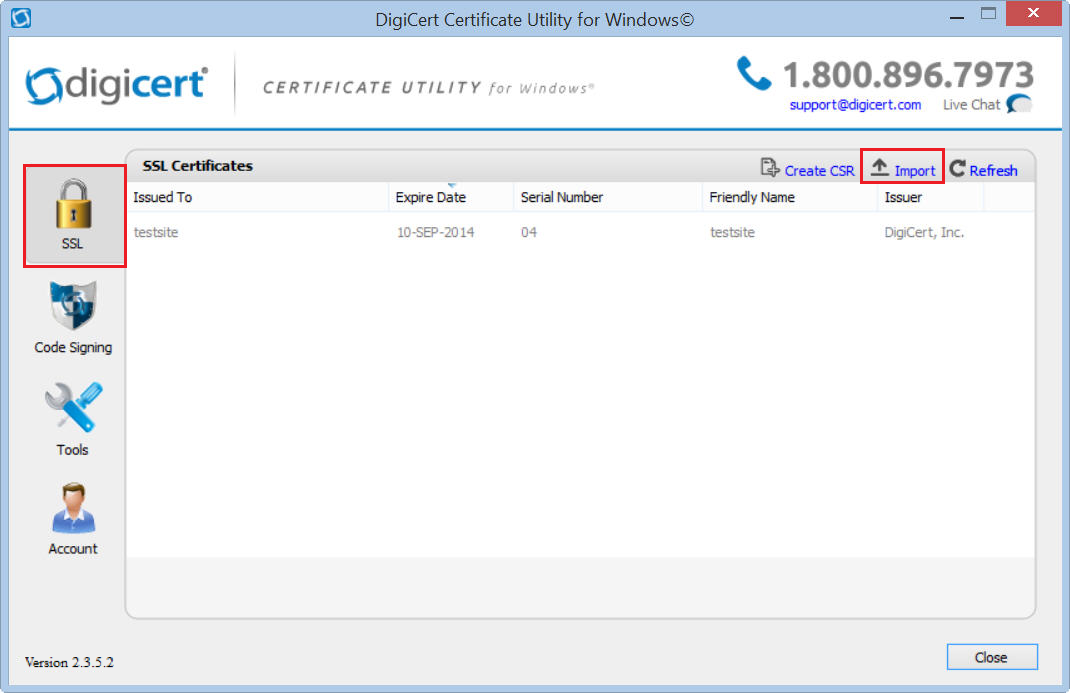
In DigiCert Certificate Utility for Windows©, click SSL (gold lock) and then, click Import.
-
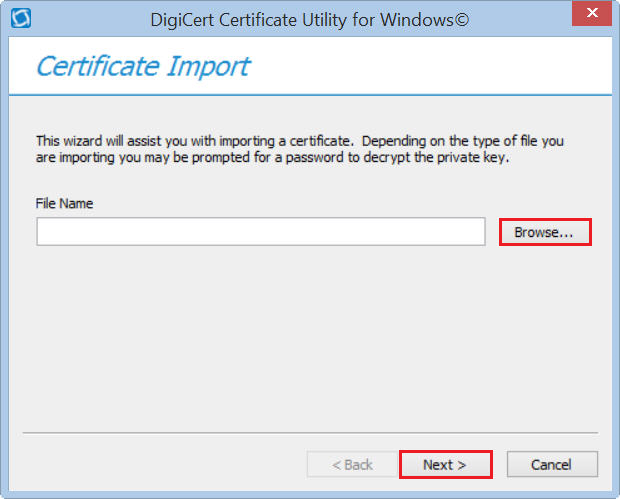
In the Certificate Import wizard, click Browse to browse to the .pfx certificate file (i.e. your_domain_com.pfx), select the file, and click Open, and then, click Next.
-
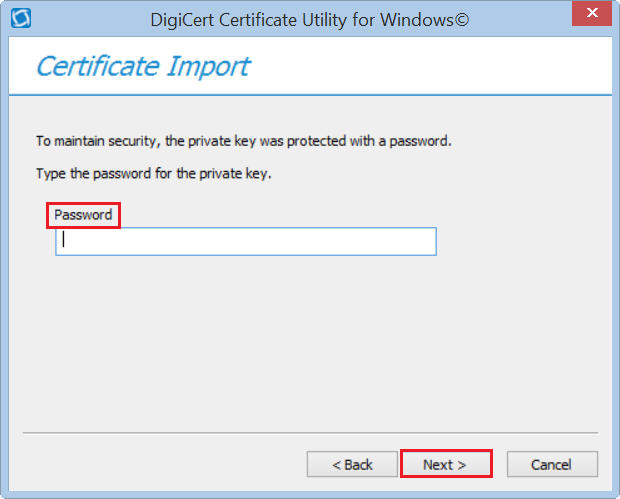
In the Password box, enter the password for the .pfx file and then click Next.
-
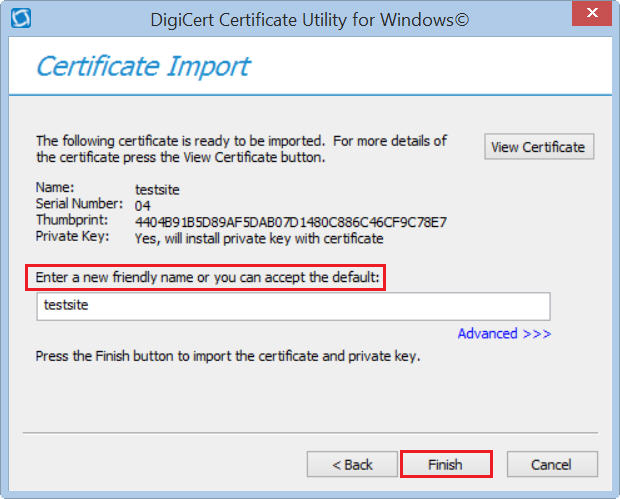
In the Enter a new friendly name or you can accept the default box, type a friendly name for the certificate.
Note: The friendly name is not part of the certificate; instead, it is used to identify the certificate.
We recommend that you add DigiCert and the expiration date to the end of your friendly name, for example: yoursite-digicert-(expiration date). This information helps identify the issuer and expiration date for each certificate. It also helps distinguish multiple certificates with the same domain name.
-
Click Finish to import the SSL Certificate (.pfx file) to your IIS 7 server.
You should receive a message that the certificate was successfully imported. You should now see your SSL Certificate in the DigiCert Certificate Utility for Windows©, under SSL Certificates.
-
Now you need to configure your IIS 7 server to use this SSL Certificate.
2. Using IIS7 to Assign the Certificate to the Your Website
For IIS 7, SSL Certificates are bound to a website by binding the website to a certain IP address and port combination.
-
For a website without a binding for HTTPS:
See Adding Site Bindings.
-
For a website with a binding for HTTPS:
Adding Site Bindings
-
Open Internet Information Services (IIS) Manager.
-
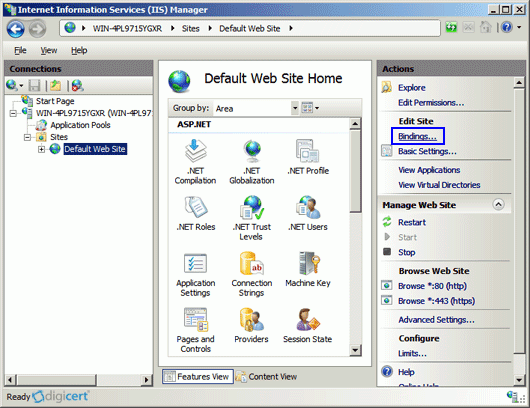
In Internet Information Services (IIS) Manager, under Connections, expand your server’s name, expand Sites, and then click the site or domain to which you want to bind the SSL Certificate.
-
In the Actions menu, under Edit Site, click Bindings.
-
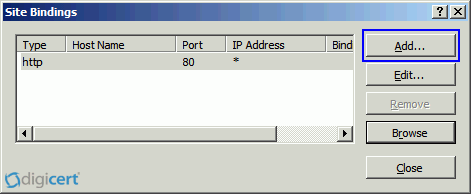
In the Site Bindings window, click Add.
-
In the Add Site Binding window, enter the following information:
Type In the drop-down list, select https. IP address In the drop-down list, select All Unassigned. Port Enter 443. The port for SSL traffic is usually port 443. SSL certificate In the drop-down list, select the recently imported SSL Certificate by its friendly name. 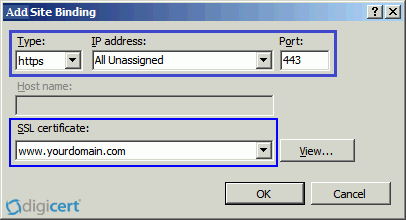
-
Click OK.
Your SSL Certificate should now be copied to and installed on your IIS 7 server.
Editing Site Bindings (Website Has Binding for HTTPS)
-
Open Internet Information Services (IIS) Manager.
-
In Internet Information Services (IIS) Manager, under Connections, expand your server’s name, expand Sites, and then click the site or domain to which you want to bind the SSL Certificate.
-
In the Actions menu, under Edit Site, click Bindings.
-
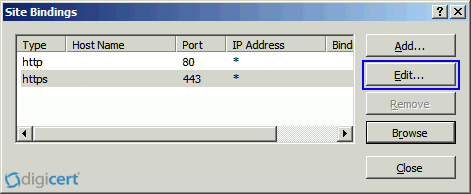
In the Site Bindings window, select the HTTPS binding for the site and click Edit.
-
In the Edit Site Binding window enter the following information:
IP address In the drop-down list, select All Unassigned. If your server has multiple IP addresses, select the one that applies. SSL certificate In the drop-down list, select the recently imported SSL Certificate by its friendly name. 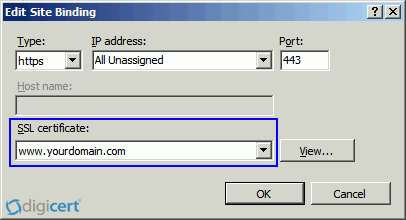
-
Click OK.
Your SSL Certificate should now be copied to and installed on your IIS 7 server.
Test Your Installation
To verify that the installation is correct, use our DigiCert® SSL Installation Diagnostics Tool and enter the DNS name of the site (i.e. www.yourdomain.com, or mail.yourdomain.com) that you are securing to test your SSL Certificate.
Troubleshooting
If you run into certificate errors, try repairing your certificate trust errors using DigiCert® Certificate Utility for Windows. If this does not fix the errors contact support.