Transferring an SSL Certificate from a Windows server to an Apache Server
These instructions explain how to export an SSL certificate installed on a Microsoft server for importing to an Apache server. The SSL certificate file is exported as a .crt and .key file and includes the intermediate certificate. If you need your SSL certificate in a .pfx format, please see DigiCert Certificate Utility SSL Certificate Export Instructions (PFX Format).
Background
Apache servers split the SSL certificate parts into two separate files: .crt and .key files. The .crt file contains the public key file (SSL certificate file), and the .key file contains the associated private key. DigiCert provides your SSL certificate file (public key file). You use your server to generate the associated private key file as part of the CSR. You need both the public and private keys for an SSL certificate to function.
Windows servers use .pfx files that contain the public key file (SSL certificate file) and the associated private key file. So, if transferring your SSL certificates from a Windows server to Apache, you need to export the certificate in an Apache compatible format, which splits the public (.crt) and private (.key) files.
Export Prerequisites
To export your certificate .crt file and its .key file for apache, the SSL certificate and its corresponding private key must be on the same computer/workstation. You may need to import the certificate to the computer that has the associated private key stored on it. (e.g., the laptop/desktop computer where you created the CSR) before you can successfully export the .crt and .key files.
For help importing the certificate, see SSL Certificate Importing Instructions: DigiCert Certificate Utility.
How to Export Your SSL Certificate w/Private Key Using the DigiCert Certificate Utility
-
On your Windows Server from which you want to export the SSL certificate, download and save the DigiCert® Certificate Utility for Windows executable (DigiCertUtil.exe).
-
Run the DigiCert® Certificate Utility for Windows (double-click DigiCertUtil).
-
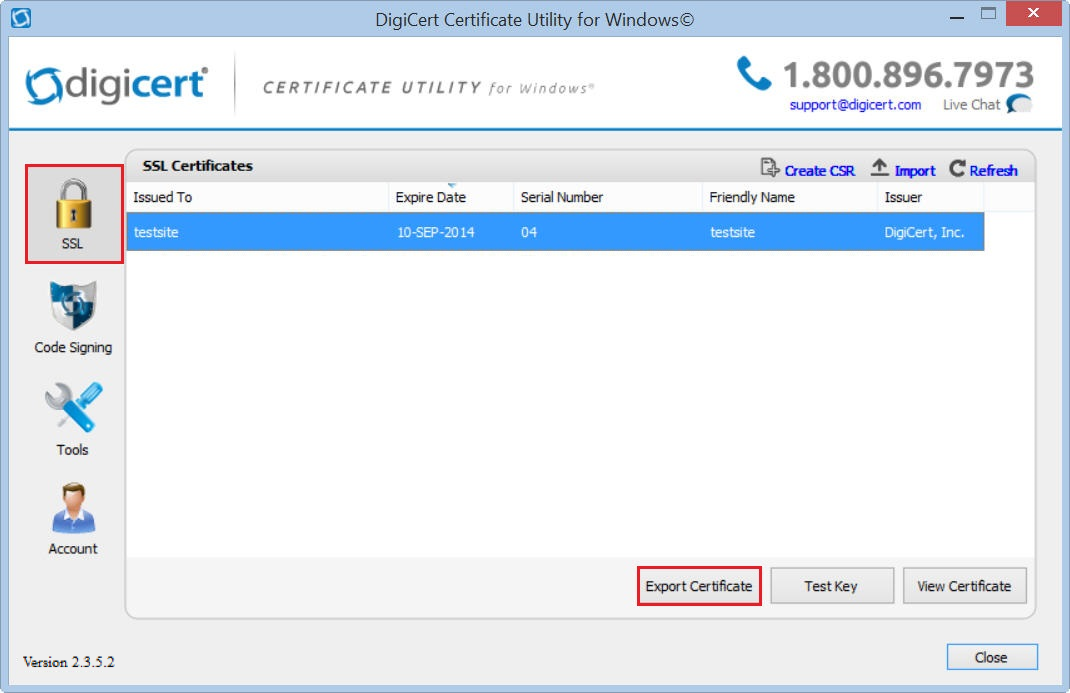
In the DigiCert Certificate Utility for Windows©, click SSL (gold lock), select the certificate that you want to export as a .pfx file, and then click Export Certificate.
-
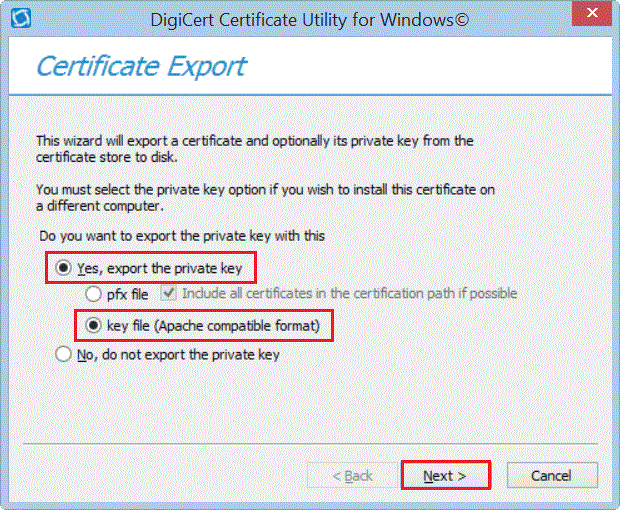
In the Certificate Export wizard, select Yes, export the private key, select key file (Apache compatible format), and then click Next.
Note: If the Yes, export the private key option is grayed out (not unusable), the certificate's matching private key is not on that computer. This prevents you from being able to create the .key file for apache. To fix this problem, you will need to import the certificate to the same machine where the certificate's CSR was created. See Export Prerequisite.
-
In the File name box, click … to browse the location where you want to save your files.

-
In the Save As window, browse for and select the location where you want to save your .key and .crt files.
-
Provide a file name (i.e. your_domain_com.key) for your .key file, noting that your server .crt file will have the same name (i.e your_domain_com.crt).
-
Click Save.
-
In the Certificate Export wizard, click Finish.
This exports the following files that you need to copy to your Apache server:
Private Key: your_domain_com.key
Server Certificate: your_domain_com.crt
Intermediate Certificate: DigiCertCA.crt -
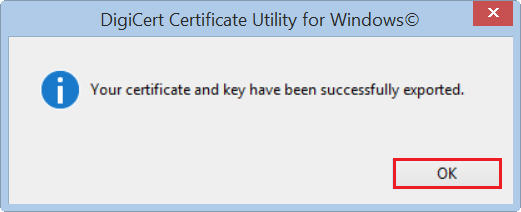
After you receive the "Your certificate and key have been successfully exported" message, click OK.
Enable Certificate Files on Apache and Other Servers Using Apache Format
To enable these certificate files in Apache or other Server types that use SSL certificate files in Apache format, you need to follow the instructions for that particular server type:
For other server types that use certificate files in Apache format, please see SSL Certificate Installation Instructions & Tutorials to find the SSL certificate installation instructions for your server type.
Test Your Installation
To verify that the installation is correct, use our DigiCert® SSL Installation Diagnostics Tool and enter the DNS name of the site (i.e. www.yourdomain.com, or mail.yourdomain.com) that you are securing to test your SSL certificate.