

- Contact Us
-

choose your language

Knowledge Base
CSR creation instructions for Microsoft servers

Create a CSR for Microsoft servers using the DigiCert® Certificate Utility for Windows.
Are you searching for a simple way to create a CSR that works on any Microsoft server platform? Then, use the DigiCert Certificate Utility for Windows©. To learn more about the DigiCert Certificate Utility, see DigiCert Certificate Utility for Windows.
Generate a CSR for Microsoft servers with the DigiCert Certificate Utility
Follow the steps below to create a CSR using the DigiCert Certificate Utility.
- On your Windows Server, download and save the DigiCert Certificate Utility for Windows executable (DigiCertUtil.exe).
- Run the DigiCert Certificate Utility for Windows (double-click DigiCertUtil).
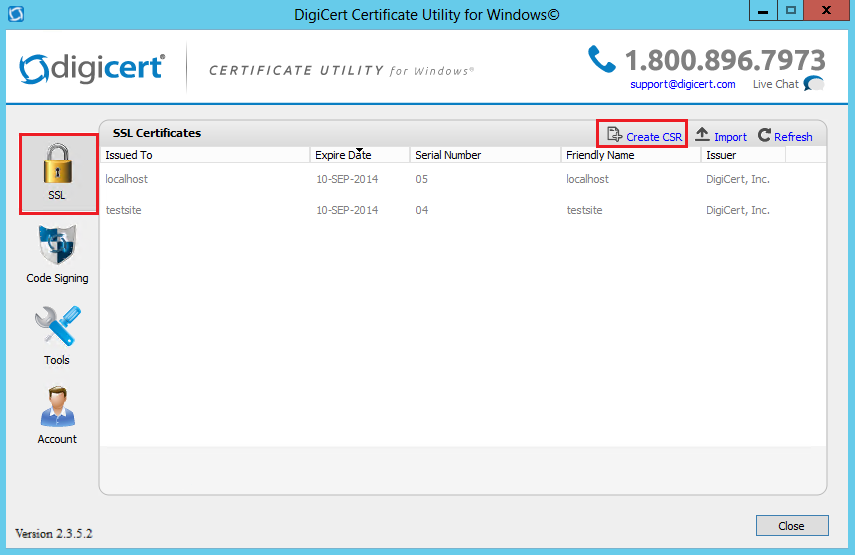
- In the DigiCert Certificate Utility for Windows©, select SSL (gold lock) and then Create CSR.
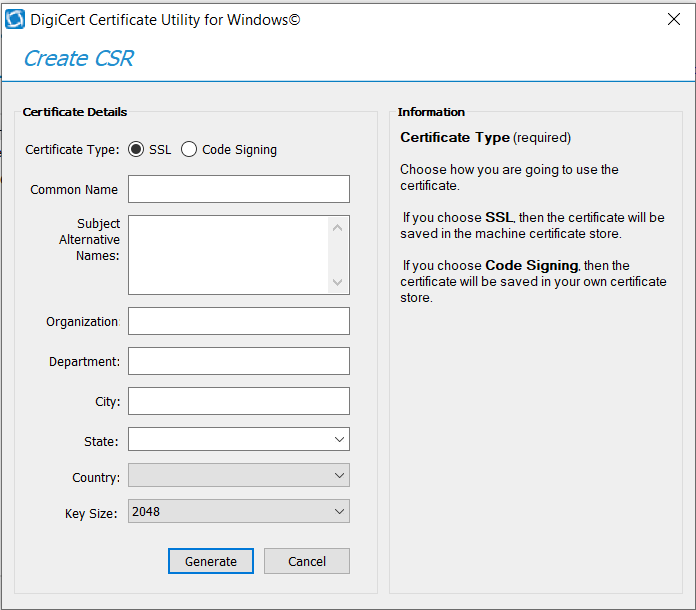
- On the Create CSR page, under Certificate Details, provide the following information below and select Generate.
- For Certificate Type, select SSL.
- In the Common Name box, enter the fully qualified domain name (FQDN) (e.g., www.example.com).
- In the Subject Alternative Names box, enter any SANs you want your certificate to secure (e.g., www.example2.com, www.example3.net).
You can leave this box blank if you are only securing one domain. - In the Organization box, enter your company's legally registered name.
Make sure your legal business name matches official records, including the business entity type, such as Corp or Inc. - Department - No longer applicable
In SSL/TLS certificates, the industry deprecated support for including a department (often referred to as an organization unit) in public SSL/TLS certificates. See DigiCert will deprecate the Organizational Unit field. - In the City box, enter the city where your company is legally located.
- In the State dropdown, select the state where your company is legally located.
Is your company located outside the USA? You can type the name of your providence or state in the box. - In the Country dropdown, select the country where your company is legally located.
- In the Key Size dropdown, select 2048 unless you have a specific reason for using a larger key size.
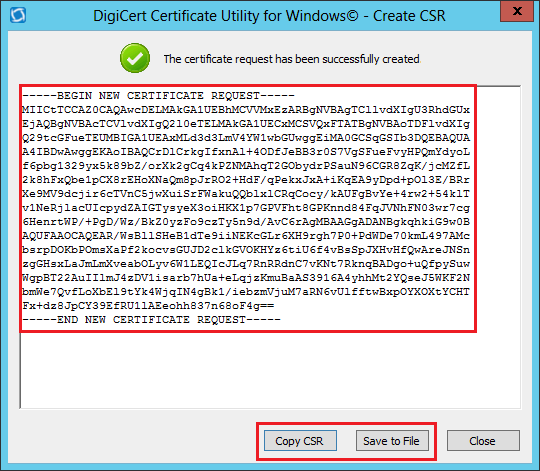
- On the DigiCert Certificate Utility for Windows© - Create CSR page, do one of the following and then select Close:
- Save the CSR file (DigiCert recommends using this option)
To save the CSR as a .txt file to your server, select Save to File.
- Copy the CSR
If you are ready to add the CSR to the DigiCert order form, select Copy CSR. This copies the CSR contents onto the clipboard.
The DigiCert Certificate Utility does not store CSRs. Therefore, we recommend you paste the CSR into a text editor (such as Notepad) when using this option.
If you accidentally overwrite the clipboard contents after closing the CSR page, you must generate a new CSR.
- Save the CSR file (DigiCert recommends using this option)
- Use a text editor (such as Notepad) to open the file. Copy the text, including the -----BEGIN NEW CERTIFICATE REQUEST----- and -----END NEW CERTIFICATE REQUEST----- tags, paste it into the DigiCert order form, and submit your order.
What's next
After receiving your SSL/TLS Certificate from DigiCert, you can use the DigiCert Certificate Utility for Windows to install it. See SSL Certificate Importing Instructions: DigiCert Certificate Tool.
-

The most-trusted global provider of high-assurance TLS/SSL, PKI, IoT and signing solutions.
-



-
© 2022-2024, DigiCert, Inc. All rights reserved.
Cookie Settings
