Instructions for Using the DigiCert Certificate Utility to Renew Your SSL Certificate
The instructions are for using the DigiCert® Certificate Utility for Windows to create your CSR (certificate signing request) and install your SSL Certificate. Then, you need to use the instructions for your specific server platform to assign/configure your SSL Certificate on your server.

To Renew Your SSL Certificate:
-
Create your CSR.
-
Install your new SSL Certificate.
See Importing Your SSL Certificate with the DigiCert Utility.
-
Configure or assign your new SSL Certificate.
See Assign & Configure Server Software to Use the New SSL Certificate.
1. Creating a New CSR with the DigiCert Utility
Best practices are to generate a new certificate signing request (CSR) when renewing your SSL certificate.
-
On your Windows server with the expiring certificate, download and save the DigiCert® Certificate Utility for Windows executable (DigiCertUtil.exe).
-
Run the DigiCert® Certificate Utility for Windows
Double-click DigiCertUtil.
-
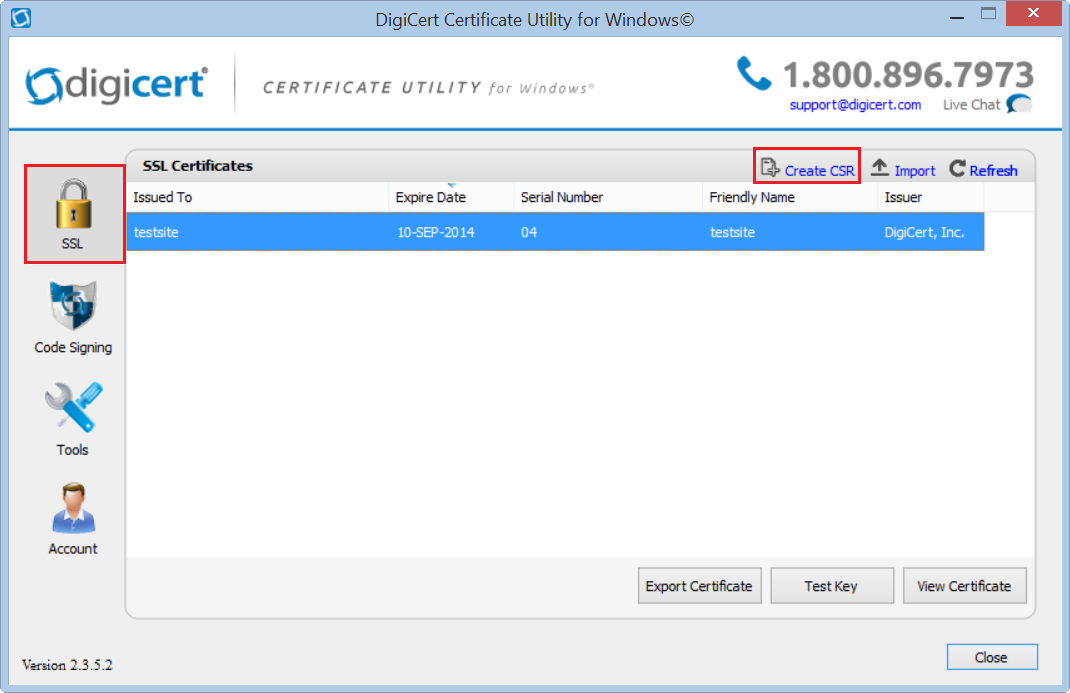
In the DigiCert Certificate Utility for Windows©, click SSL (gold lock), select the expiring certificate, and then click Create CSR.
-
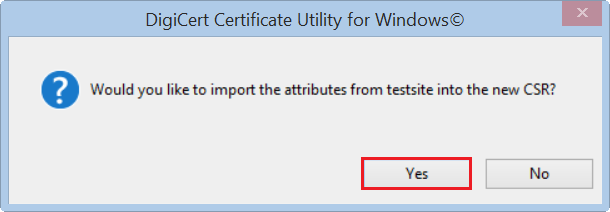
In the "Would you like to import the attributes from 'certificate' into the new CSR?" window, click Yes.
-
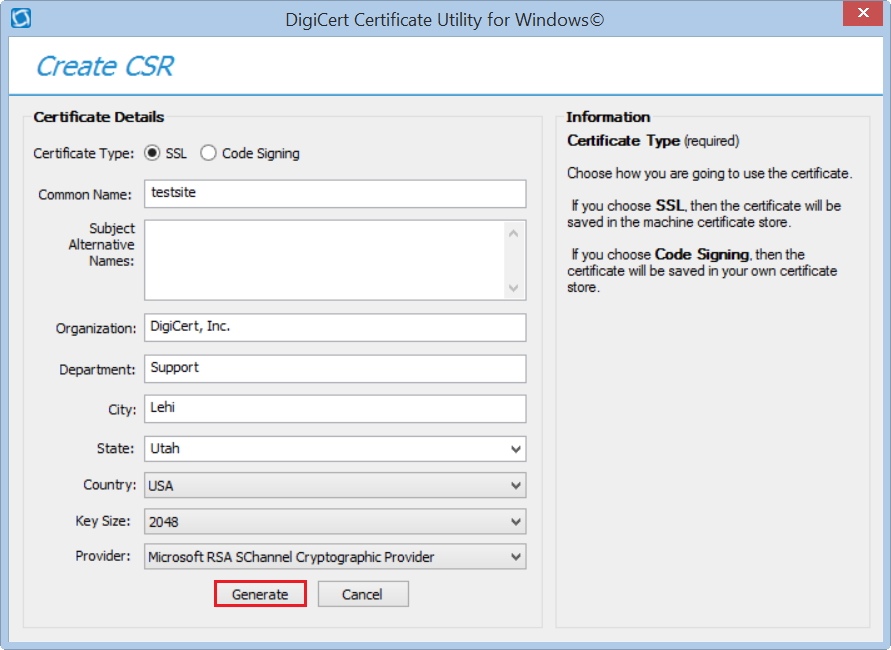
On the Create CSR page, verify that all the certificate details are correct, and then click Generate.
-
On DigiCert Certificate Utility for Windows© - Renew Certificate page, do one of the following, and then, click Close:
Click Copy CSR. Copies the certificate contents to the clipboard. If you use this option, we recommend that you paste the CSR into a tool such as Notepad. If you forget and copy some other item, you still have access to the CSR, and you do not have to go back and recreate it. Click Save to File. Saves the CSR as a .txt file to the Windows server. We recommend that you use this option. 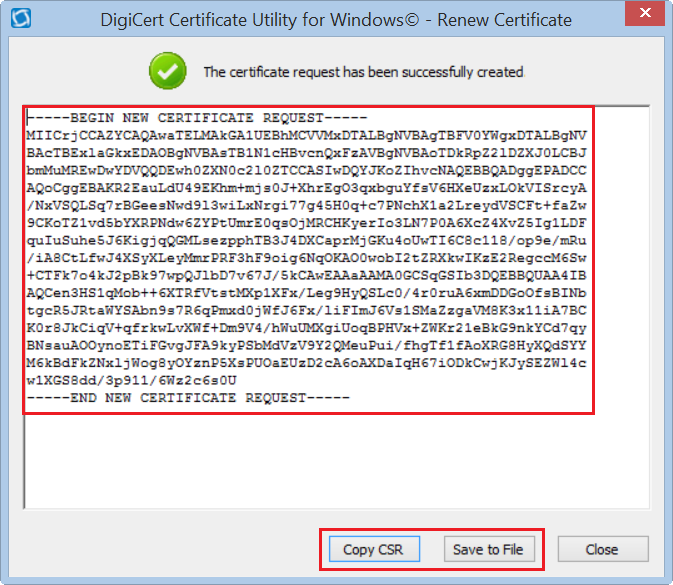
Renew your SSL certificate
Renew your SSL certificate from inside your DigiCert CertCentral account.
Are you new to the DigiCert team? You can "replace" your certificate with a DigiCert certificate. Order your new certificate here - Purchase Your DigiCert Certificate.
-
Sign in to your CertCentral account.
-
In CertCentral, in the left main menu, click Certificates > Expiring Certificates.
-
On the Expiring Certificates page, next to the certificate you want to renew, click Renew Now.
A certificate doesn't appear on the Expiring Certificates page until 90 days before it expires.
-
Follow the instructions provided inside your account to renew your SSL certificate.
-
Add your CSR
When renewing the certificate, you'll need to include a CSR. On the "Renewal" page, under Certificate Settings, upload the CSR file you saved to the server.
You can also use a text editor (such as Notepad) to open the file. Then, copy the text, including the -----BEGIN NEW CERTIFICATE REQUEST----- and -----END NEW CERTIFICATE REQUEST----- tags, and paste it to or Paste it in the Add Your CSR box.
-
After placing the order to renew your certificate, DigiCert verifies your information.
-
If we need any additional information, we will promptly contact you by phone or email. If no additional information is required, we will most likely issue your certificate within an hour.
2. Importing Your SSL Certificate with the DigiCert Utility
Once your renewal certificate order has been validated and issued, you need to copy your SSL Certificate file to the server where the CSR was created. Then, you need to run the DigiCert Certificate Utility to import it to your Microsoft Server.
-
After receiving your new certificate file from DigiCert, save the file to the Windows server where you created the CSR.
-
On the same server, run the DigiCert® Certificate Utility for Windows.
Double-click DigiCertUtil.
-
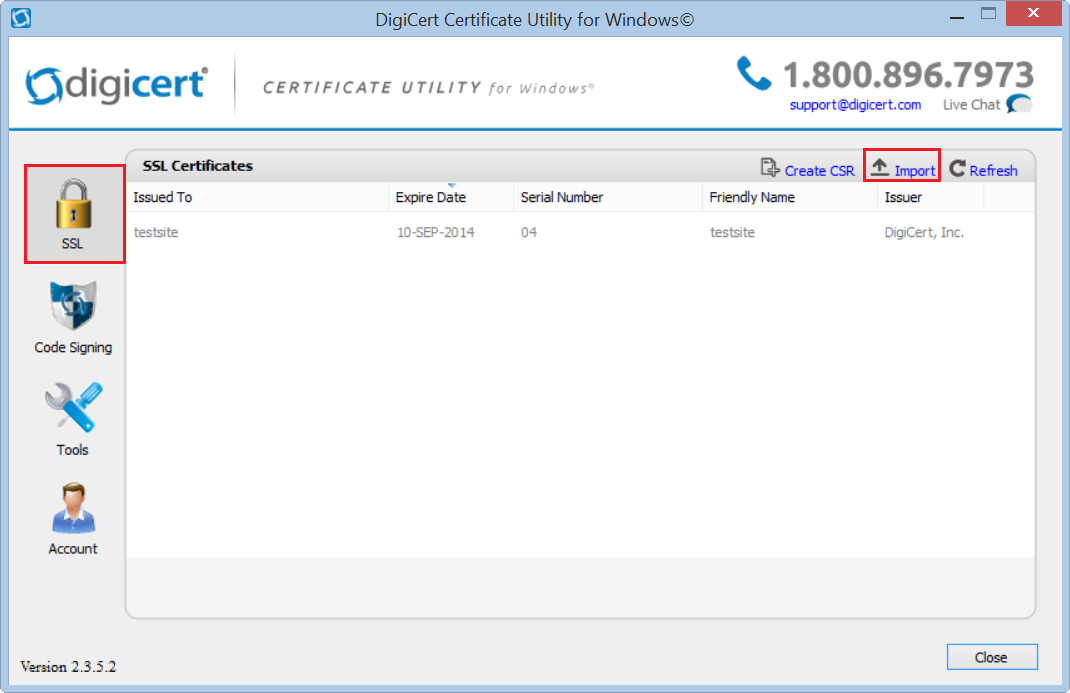
In DigiCert Certificate Utility for Windows©, click SSL (gold lock) and then, click Import.
-
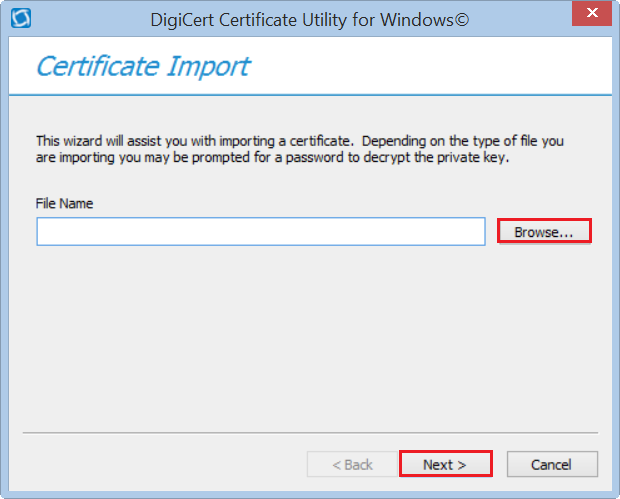
In the Certificate Import wizard, click Browse to browse to the .cer certificate file (i.e. your_domain_com.cer) that DigiCert sent you, select the file, click Open, and then, click Next.
-
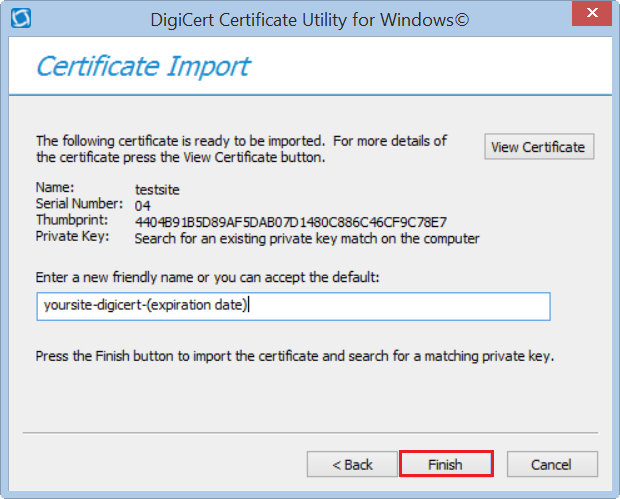
In the Enter a new friendly name or you can accept the default box, type a friendly name for the certificate.
Note: The friendly name is not part of the certificate; instead, it is used to identify the certificate.
We recommend that you add DigiCert and the expiration date to the end of your friendly name, for example: yoursite-digicert-(expiration date). This information helps identify the issuer and expiration date for each certificate. It also helps distinguish multiple certificates with the same domain name.
-
To import the SSL Certificate to your server, click Finish.
You should receive "Your certificate has been successfully imported" message. You are now ready to assign/configure your server software to use the renewed SSL Certificate.
3. Assign & Configure Server Software to Use the New SSL Certificate
After importing the certificate, you need to follow the instructions to tell your server to use this certificate for securing your website or email connections. Follow the instructions for your specific server platform:
| IIS 10 | Exchange 2013 |
| IIS 8 | Exchange 2010 |
| IIS 7 | Exchange 2007 |
| IIS 6 | |
Export an SSL Certificate
If you need to export an installed SSL certificate from a Microsoft server type with its corresponding private key as a .pfx file to use either as a backup or for importing to another server, see DigiCert Certificate Utility SSL Certificate Export Instructions.
Test Your Installation
To verify that the installation is correct, use our DigiCert® SSL Installation Diagnostics Tool and enter the DNS name of the site (i.e. www.yourdomain.com, or mail.yourdomain.com) that you are securing to test your SSL Certificate.