Checking SSL Certificates Revocation Status
Add trust to e-signing workflows with DigiCert Document Trust Manager.
Buy NowTopics
CRLs (Certificate Revocation Lists) and Revoked Certificates »
OCSP (Online Certificate Status Protocol) and Revoked Certificates »
Microsoft Exchange 2010 Error: »
How to Use the DigiCert Certificate Utility to Verify Server Access »
CRLs (Certificate Revocation Lists) and Revoked Certificates
Normally, only client devices need to check if a Certificate Authority has revoked an SSL Certificate. Clients make this check so that they can warn users about trusting a website, an email server, or a device.
Certificate Authorities (CAs) are required to keep track of the SSL Certificates they revoke. After the Certificate Authority (CA) revokes an SSL Certificate, the CA takes the serial number of the certificate and adds it to their certificate revocation list (CRL). The URL to the Certificate Authority’s certificate revocation list is contained in each SSL Certificate in the CRL Distribution Points field.
To check the revocation status of an SSL Certificate, the client connects to the URLs and downloads the CA's CRLs. Then, the client searches through the CRL for the serial number of the certificate to make sure that it hasn't been revoked.
You can see the URLs for an SSL Certificate’s CRLs by opening an SSL Certificate. Then, in the certificate's Details in the Certificate Extensions, select CRL Distribution Points to see the issuing CA's URLs for their CRLs.
For example, in Chrome:
-
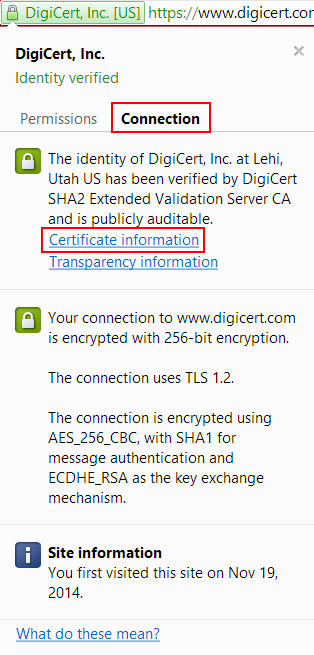
In the address bar of the browser, to the left of the address, click the lock.
-
Click Connection and then click Certificate information.
-
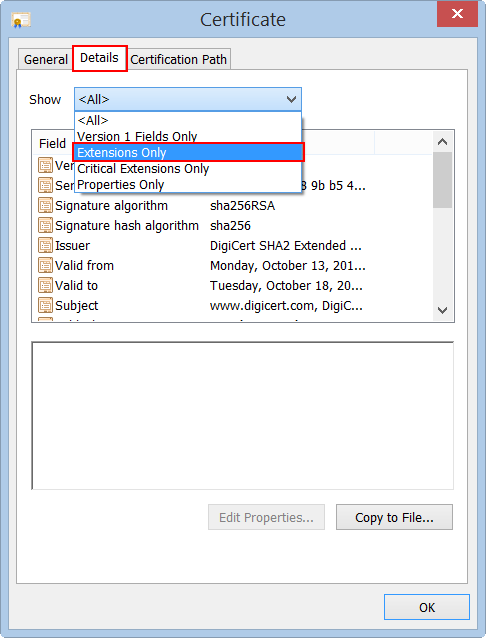
In the Certificate window, click Details, and then, in the Show drop-down list select Extensions Only.
-
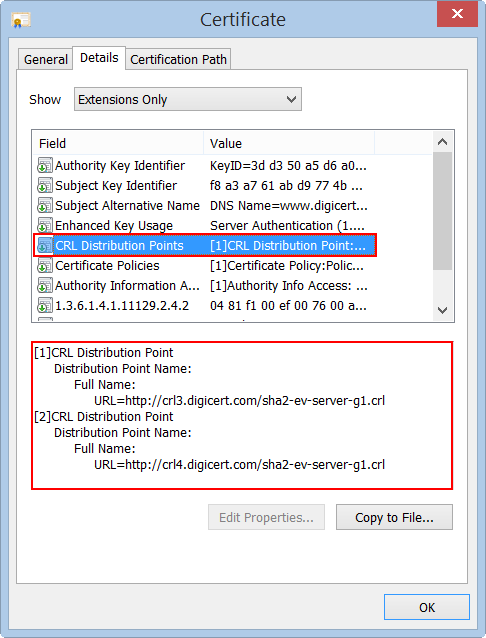
In the box below, under Field, locate and click CRL Distribution Points.
The box below it populates with the URL(s) for the CRL(s).
OCSP (Online Certificate Status Protocol) and Revoked Certificates
Online Certificate Status Protocol (OCSP) has largely replaced the use of CRLs to check SSL Certificate revocation. Instead of downloading a potentially large list of revoked certificates in a CRL, a client can simply query the issuing CA's OCSP server using the certificate's serial number and receive a response indicating if the certificate is revoked or not.
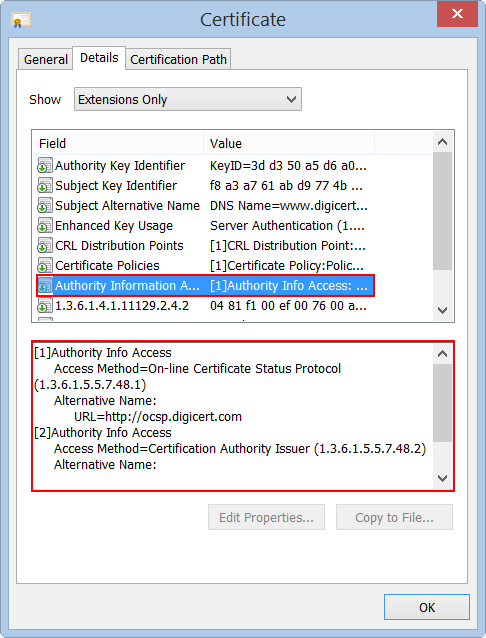
You can see the URLs used to connect to a CA's OCSP server by opening up a certificate. Then, in the certificates Details in the Certificate Extensions, select Authority Information Access to see the issuing CA's URL for their OCSP.
For information about using OCSP stapling to enhance the OCSP protocol, see Enable OCSP Stapling on Your Server.
For example, in Internet Explorer:
-
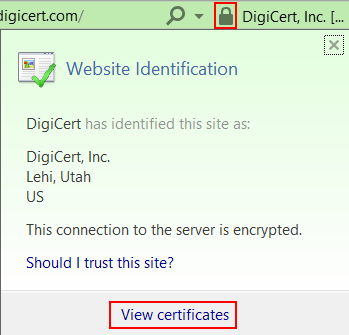
In the address bar of the browser, to the right of the address, click the lock and then click View certificates.
-
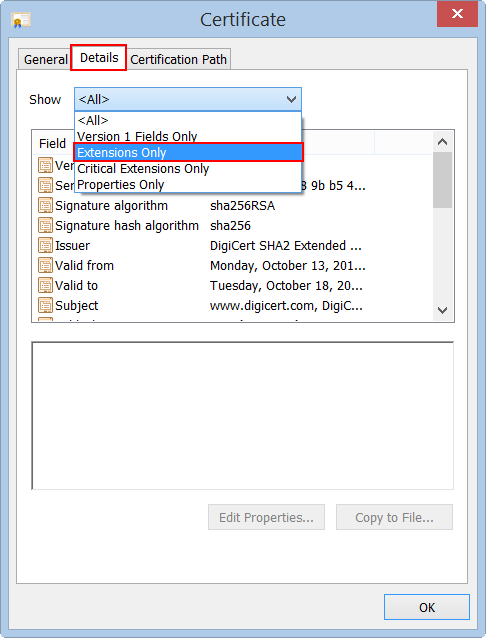
In the Certificate window, click Details, and then, in the Show drop-down list select Extensions Only.
-
In the box below, under Field, locate and click Authority Information Access.
The box below it populates with the URL for the CA's OCSP.

Microsoft Exchange 2010 Error:
"The certificate status could not be determined because the revocation check failed."
Microsoft Exchange 2010 was designed to check a certificate's revocation status, to prevent administrators from inadvertently configuring Exchange to use a revoked SSL Certificates. However, Exchange 2010 doesn't allow you to assign an SSL Certificate in the Exchange Management Console until verifying that is has not been revoked by the Certification Authority (CA) that issued it.
This process sometimes causes problems. When the server can't make a connection with a CA to check a certificate's revocation status, an error message is displayed: "The certificate status could not be determined because the revocation check failed". This error is misleading because it makes the problem sound as if the certificate has been revoked. In most cases, it is a connection problem not a certificate revocation issue.
The connection issue can be caused by the WinHTTP proxy settings or by the firewall settings preventing the Exchange server from connecting to the CRL or OCSP URLs to perform the revocation checks. To troubleshoot this error, you can use the DigiCert® Certificate Utility for Windows to verify whether your server can reach the CRL or OCSP URLs.

How to Use the DigiCert Certificate Utility to Verify Server Access
When testing server access, if your proxy server connection is not through WinHTTP, the DigiCert Certificate Utility may not be able to automatically detect the proxy settings for the server.
-
On your Exchange 2010 server where your SSL Certificate is installed, download and save the DigiCert® Certificate Utility for Windows executable (DigiCertUtil.exe).
-
Run the DigiCert® Certificate Utility for Windows (double-click DigiCertUtil).
-
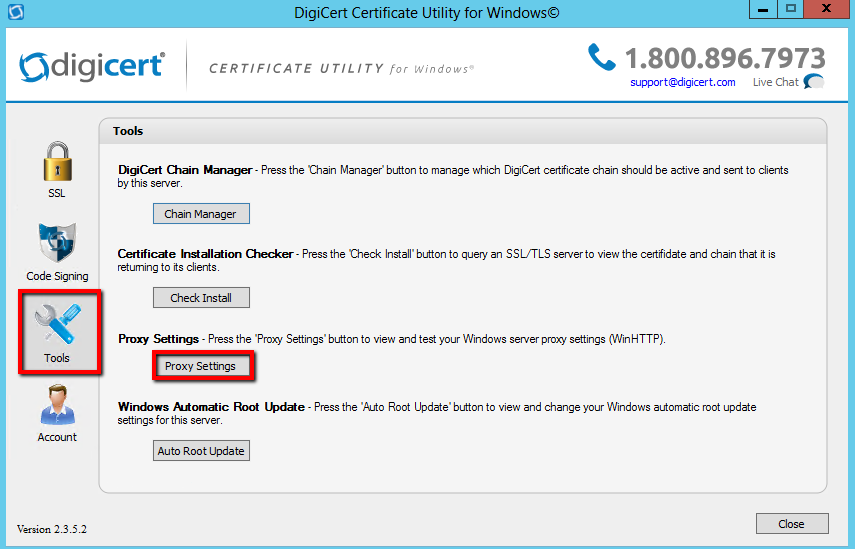
In the DigiCert Certificate Utility for Windows©, click Tools (wrench and screw drive), and then click Proxy Settings.
-
On the Proxy Settings page, select a server proxy setting and review your WinHTTP settings:
Server Proxy Settings: Select the appropriate settings: 64-Bit Setting or 32-Bit Setting. Microsoft computers and servers use separate settings for 32-bit and 64-bit WinHTTP Settings. If you are using a 64-bit server, you should test both of these settings. Access Type: If no proxy is configured, it displays Direct Access. If proxy servers are configured, it displays the configured proxy servers. (e.g. proxy.yourdomain.com:8080) Proxy Servers: If no proxy server is configured, it displays <none>. If proxy servers are configured, it displays the settings for the listed proxy servers. Bypass List: If no proxy server is configured, it displays <none>. If proxy servers are configured, it displays a list of domains that are configured not to use the proxy. (e.g. your active directory domain) 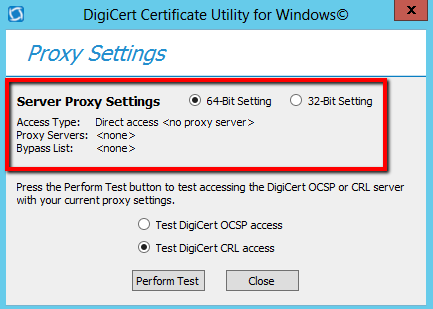
-
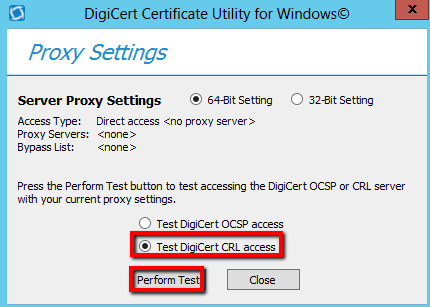
Select Test DigiCert CRL access and then click Perform Test.
-
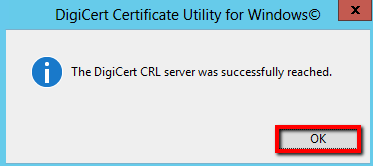
If the DigiCert Utility is able to reach the DigiCert CRL server, you should receive a "successfully reached" message. Click OK.
-
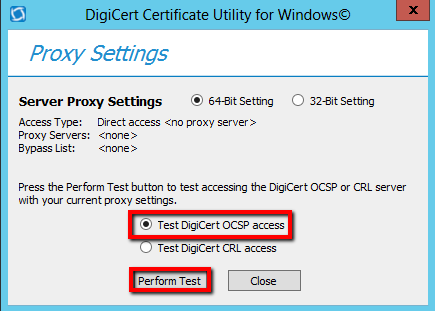
Next, select Test DigiCert OCSP access and then click Perform Test.
-
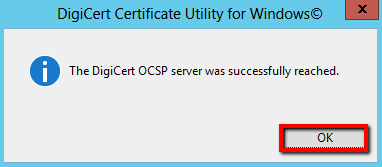
If the DigiCert Utility is able to reach the DigiCert OCSP server, you should receive a "successfully reached" message. Click OK.