
Back

-
Solutions
Back
Digital Trust for:
Enterprise IT, PKI & Identity
Code & Software
Documents & Signing
IoT & Connected Devices
Manage PKI and Certificate risk in one place
Streamlined Certificate
Management and Automation:
Delivering At-Scale Uptime and Availability
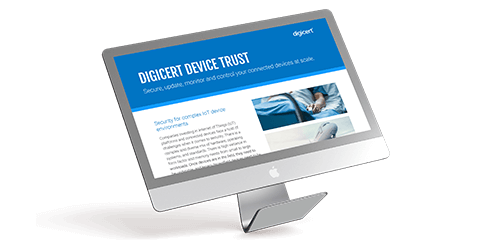
Secure, update, monitor and control connected devices at scale
DOWNLOAD NOW - Buy
-
Insights
Back
Digital Trust for the Real World
Explore these pages to discover how DigiCert is helping organizations establish, manage and extend digital trust to solve real-world problems.
Ponemon Institute Report
See what our global post-quantum study uncovered about where the world stands in the race to prepare for quantum computing.
LEARN MORE >

-
Partners
Back
- Support
- Contact us
- Language



DigiCert Certificate
Utility for Windows
Certificate Management and Troubleshooting
made easy.
Essential for Windows Users
The free DigiCert Certificate Utility for Windows is an indispensable tool for administrators and a must-have for anyone that uses SSL Certificates for Websites and servers or Code Signing Certificates for trusted software.
Top DigiCert Utility Help Articles
- Assign a Certificate
- Create a CSR
- Export a Certificate (Apache .pem)
- Export a Certificate (Windows .pfx)
- Export Authenticode Signing Certificates
- Export Driver Signing Certificate
- Install a Certificate
- Renew a Certificate
- Repair Intermediate Chain
- Sign a Winqual.exe File
- Sign Code Through Command Prompt
- Sign Code with the DigiCert Utility
- Create Code Signing CSR
- Import Code Signing Certificate

24/7 Award Winning Technical Support
Get The Support You Want, When You Need It
If you can’t find what you’re looking for online, we’re also available by phone, email, and chat every hour of every day. Getting real customer support is one of the most crucial parts of our business, so we don’t outsource or have phone queues.
More Resources and Articles
Certificate Types
-

The most-trusted global provider of high-assurance TLS/SSL, PKI, IoT and signing solutions.
-


-
© 2024 DigiCert, Inc. All rights reserved.
Legal Repository Audits & Certifications Terms of Use Privacy Center Accessibility Cookie Settings